How to Calculate Personal Loan EMI in Excel

- What Is a Personal Loan EMI?
- The EMI Calculation Formula in Excel
- How to Calculate Personal Loan EMI in Excel: Step-by-Step
- Quick EMI Reference Table (Rs 3,00,000 at 17.9% p.a.)
- EMI Calculator Excel Sheet vs. Online EMI Calculator: Which to Use?
- Critical Points to Remember When Using the EMI Formula in Excel
- How to Apply for a Personal Loan After Calculating Your EMI
- Conclusion
- Frequently Asked Questions
My sister was comparing three loan offers last month. Different rates, different tenures, and the bank website's own calculator kept resetting every time she switched tabs to check the next one. Ten minutes in she just gave up and opened Excel instead. Honestly that's the whole reason to bother with any of this. You see every option at once, save the file, change one number and everything downstream updates itself. Beats typing the same three numbers into three different websites.
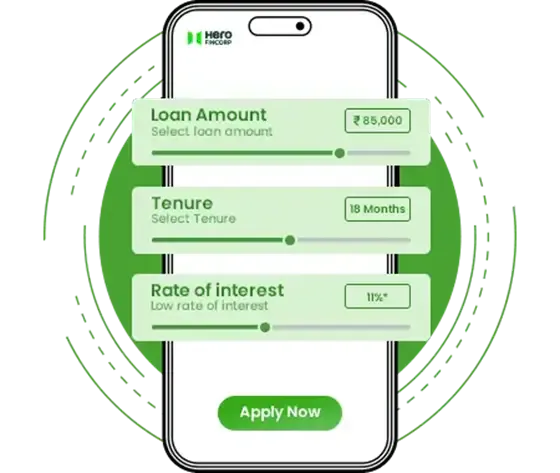
What Is a Personal Loan EMI Calculator in Excel?
It's a spreadsheet. One formula, really, doing the work three numbers used to need a calculator and some patience for: loan amount, rate, tenure, out comes your monthly payment. People don't build these for the single answer though, that's not really the point. It's stacking five or six versions side by side, ₹5 lakh at 10% for four years, then five years, then six, and actually seeing what each extra year costs you in interest rather than guessing.
Why Bother With Excel At All
For one quick number, honestly, don't. Use an online tool, it's faster. Excel earns its keep the moment you want more than one number though. Stack loan options in columns next to each other. Save the file, reopen it in six months when your situation's changed and the numbers still make sense. Model a prepayment partway through and watch what happens to every month after it, which most web calculators won't even let you attempt. And it works with zero signal, on a train, wherever, because it's just a file sitting on your laptop, not a website waiting to load.
What You'll Need Before You Open Excel
Four numbers. Five if you're planning that far ahead.
- Loan amount. What you're actually borrowing, obviously.
- Annual interest rate. Whatever your lender quoted.
- Tenure in months. Not years. Excel wants months, and this trips people up more than it should.
- EMI start date, optional, mostly useful if you want the schedule showing real calendar dates instead of “month 1, month 2.”
- Planned prepayment, also optional, changes everything downstream if you add one.
Get the first four right. The formula does the rest.
The Excel Formula, PMT
There's a built-in function for this. PMT. Use it once and you'll wonder why you ever tried doing it by hand.
=PMT(rate, nper, pv)
Rate's your monthly rate, not the annual figure sitting on your loan paperwork. That one swap trips up more people than everything else on this list combined. Nper's just the number of months. PV is the loan amount, and here's the part that confuses people the first time: you enter it as negative. Excel treats it as money leaving your account, not arriving, so the sign has to go the other way.
Say you're borrowing ₹5,00,000 at 10% a year over five years. In Excel:
=PMT(10%/12, 60, -500000)
Out comes ₹10,624 a month, give or take a rupee depending on how Excel rounds. Over the full 60 months that's ₹6,37,440 total, and ₹1,37,440 of that is pure interest sitting on top of what you borrowed. Now shrink the tenure to 48 months instead. EMI jumps to around ₹12,684. Total interest, though, drops to about ₹1,08,832. Shorter term, smaller total interest, bigger monthly hit. That trade-off right there is basically the entire game of loan planning, and Excel lets you watch it play out across ten combinations in the time it'd take to phone your bank once.
Building Your Own Calculator, Step by Step
Four labelled cells to start. Loan amount, annual rate, tenure in months, start date. Label sits right next to the value, nothing buried, so whoever opens this sheet in a year (probably you, having forgotten what half of it means) can still follow it.
One output cell below that holds the PMT formula. Reference the input cells. Don't type numbers straight into the formula itself, that's the mistake almost everyone makes on their first attempt, and it's exactly what breaks the sheet the moment you want to reuse it for a different loan next year.
Two more cells after that: total payment, EMI times tenure, simple multiplication. Total interest, total payment minus the original loan amount, simpler still. Format the money cells as currency. Nobody should have to squint at ₹10624 and wonder if that's ten thousand or ten and a bit. If you're feeling fussy about it, colour the inputs one shade, the calculated cells another, so at a glance it's obvious what you're allowed to touch and what you're not.
Building an Amortization Schedule
One EMI number tells you what leaves your account each month. It doesn't tell you where it actually goes, and that split shifts more than most people expect it to. Early on, almost all of it is interest. Toward the end, almost all of it is principal. Same rupee figure, wildly different composition, month over month.
Six columns does it: EMI number, opening balance, interest paid, principal paid, EMI amount, closing balance. Interest for any month is just opening balance times monthly rate. Principal is EMI minus that interest number. Closing balance is opening balance minus principal, and that closing figure becomes next month's opening balance, so the whole thing chains down the sheet. Drag it 60 rows, or however long your tenure runs, and watch interest shrink while principal grows as you go. Worth building once even if you never touch it again after.
Also Read: Loan Amortization: Meaning, Formula, Schedule & How It Works
Excel vs an Online EMI Calculator
Neither one wins outright, they're just built for different moments and people keep pretending it's a competition.
| What Matters | Excel | Online Calculator |
|---|---|---|
| Speed for one quick number | Slower setup | Instant |
| Comparing multiple loan options | Built for this exactly | Clunky, one at a time |
| Works offline | Yes | No |
| Save and reopen later | Yes | Rarely |
| Custom prepayment scenarios | Fully flexible | Usually locked out |
| Learning curve | Some | None |
Deciding between two loans this afternoon? Grab the online tool. Planning a purchase six months out, want five scenarios laid side by side? Excel, worth the twenty minutes it takes to set up once.
Common Mistakes People Make in Excel
Biggest one, by a mile: dropping the annual rate straight into the formula without dividing by 12 first. Do that and the EMI comes out absurd, usually way too high, and people panic before realising the mistake. Close second: tenure entered in years instead of months. PMT wants months. It won't warn you. It'll just quietly give you a wrong number and you won't know until you compare it against a bank's own figure.
Beyond those two: forgetting the negative sign on the loan amount, which flips your EMI negative too, technically correct, visually confusing. Hardcoding numbers straight into the formula rather than referencing cells, so the sheet snaps the second you try reusing it. Ignoring processing fees entirely, since PMT has no idea they exist even though your actual first payment absolutely will. And building a schedule once, fumbling the prepayment logic, then never checking whether the closing balance actually lands on zero in the final month. It should. Every time. If it doesn't, something upstream's wrong, go find it before you trust anything else on the sheet.
Hero FinCorp's Own EMI Calculator
Not everyone wants to build a spreadsheet on a random Tuesday evening, fair enough. Hero FinCorp's personal loan EMI calculator runs the same PMT-style math online, instantly, no formula required from you at all. Loan amount, rate, tenure, in it goes, EMI and total interest come straight back out. Worth a quick run through it before you actually apply, if only to sanity-check whatever number Excel just handed you.
Tips for Smarter Repayment Planning
Borrow what you need. Not what you're offered, those are rarely the same figure, and every extra rupee compounds into extra interest across the whole tenure whether you spend it or not. Pick an EMI with actual room in your monthly budget, not one that just barely squeezes in. Run more than one lender's offer through the same sheet before you sign anything. Keep some buffer aside for the months income runs tighter than usual, because one of them will. Make a prepayment whenever you genuinely can, even one extra EMI a year shortens the tenure more than most people expect going in. And check the amortization schedule again occasionally, not just the once when you set it up, so you actually know where the balance stands instead of guessing.
Frequently Asked Questions
What's a personal loan EMI calculator in Excel, exactly?
A spreadsheet built around the PMT function. Feed it loan amount, rate, tenure, it hands back your monthly instalment and recalculates the second any of those three changes.
How do I actually calculate EMI in Excel?
Separate cells for loan amount, annual rate, tenure. Then =PMT(rate/12, months, -loan amount). That's the whole formula. Result's your EMI.
Which formula does the actual work?
PMT. Monthly rate in, number of months in, loan amount in as a negative, fixed monthly payment out.
Why divide the rate by 12 before using it?
Because PMT wants a monthly rate and your loan paperwork quotes an annual one. Skip this step and literally everything else downstream is wrong, no matter how careful you were with the rest.
Can I really build the whole thing myself?
Yeah, and it's faster than people assume. Four input cells, one PMT formula, two more for total payment and total interest. Ten minutes, maybe less once you've done it once.
What goes into an amortization schedule?
EMI number, opening balance, interest paid, principal paid, closing balance, as columns. Interest is opening balance times monthly rate. Principal is EMI minus interest. Drag the row down for however many months you've got.
Excel or online calculator, which one should I actually use?
Depends what you're doing. One number, right now: online. Comparing several loans, or testing a prepayment scenario: Excel, no contest there.
Can Excel handle prepayments too?
Yes. Add whatever you're prepaying onto the principal for that month, let the closing balance formula carry the smaller total forward through every month after. The schedule adjusts itself from there.
Disclaimer: The information provided in this blog post is intended for informational purposes only. The content is based on research and opinions available at the time of writing. While we strive to ensure accuracy, we do not claim to be exhaustive or definitive. Readers are advised to independently verify any details mentioned here, such as specifications, features, and availability, before making any decisions. Hero FinCorp does not take responsibility for any discrepancies, inaccuracies, or changes that may occur after the publication of this blog. The choice to rely on the information presented herein is at the reader's discretion, and we recommend consulting official sources and experts for the most up-to-date and accurate information about the featured products.